
Add a widget to Strikingly
Copy your widget's code from Embeddable and paste it into an HTML app in an App Store & HTML section on your Strikingly site.
To show a widget on your Strikingly site, copy its code from Embeddable and paste it into an HTML app in an App Store & HTML section.
Get the code from Embeddable
- Open your widget in Embeddable and click Get the code at the top of the editor. You can also click Get the code next to the widget in your widget list.
- If the dialog says Publish first, publish your widget. The code only works on your site once the widget is published.
- Click Copy code.
For more about this dialog and its optional settings, see Embed a widget on your website.
Add the code to Strikingly
-
In the Strikingly editor, click Add New Section in the left panel.

-
Scroll to Advanced and choose App Store & HTML.

-
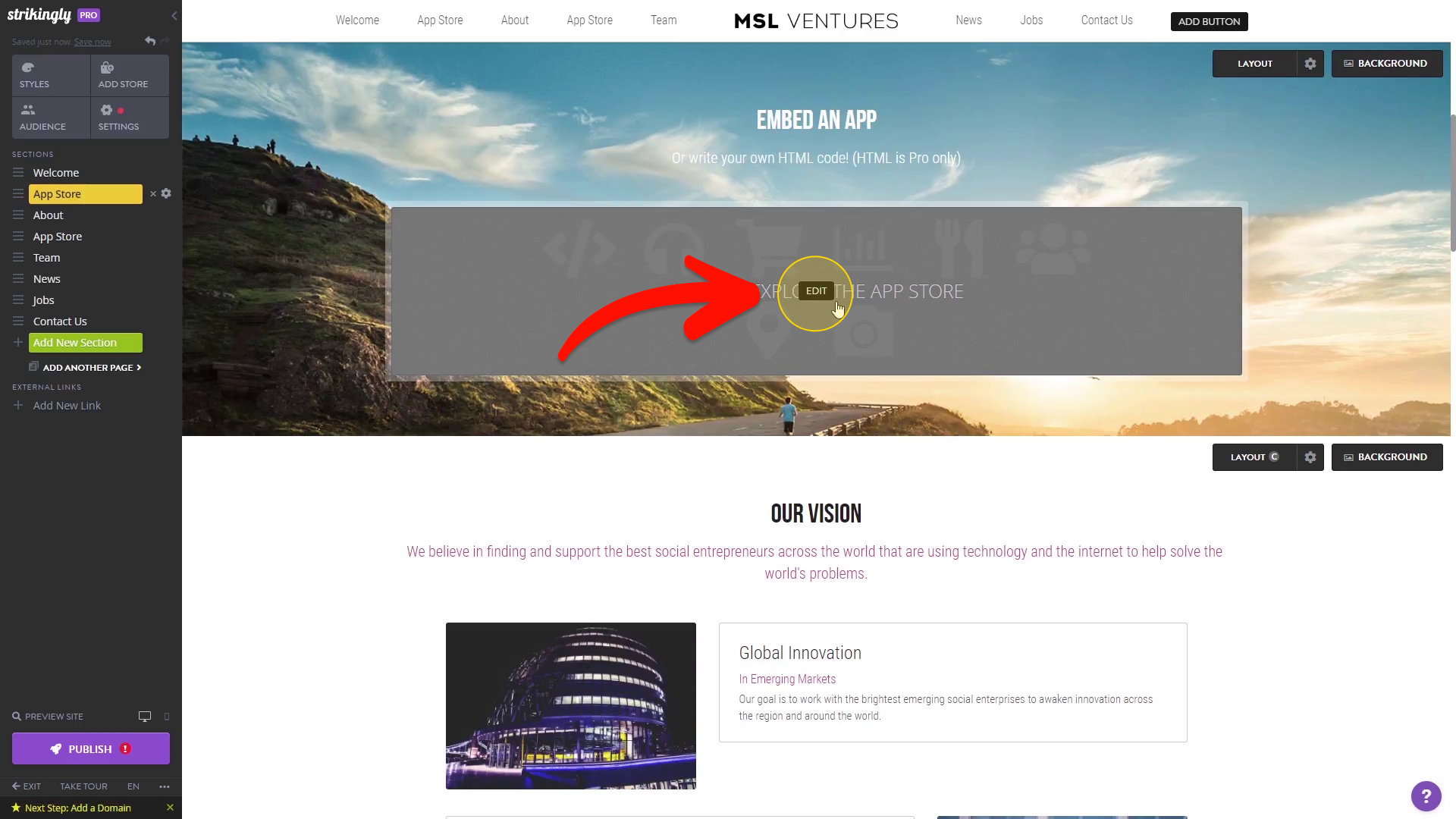
Click the new section to open it.

-
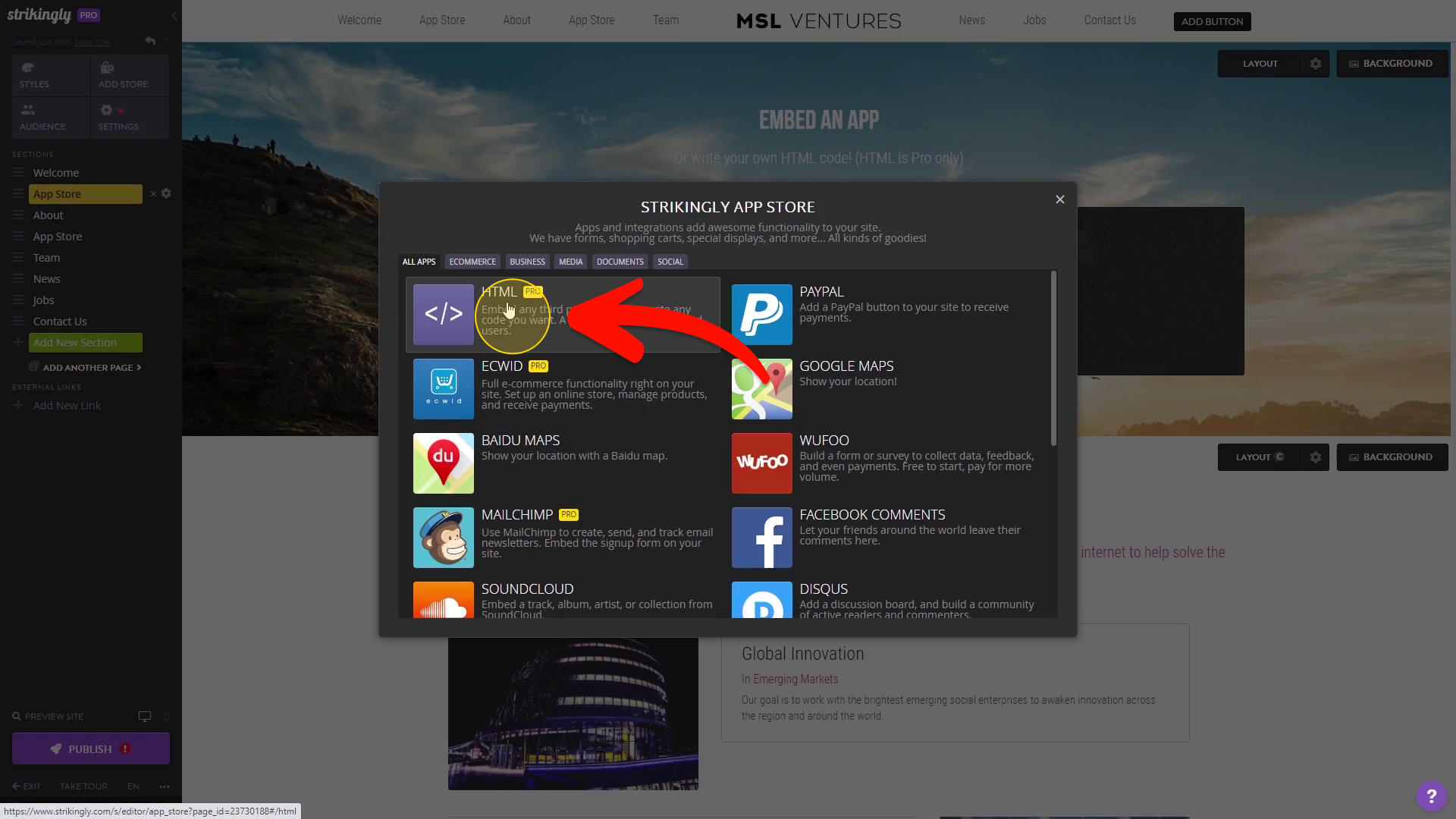
Choose the HTML app.
-
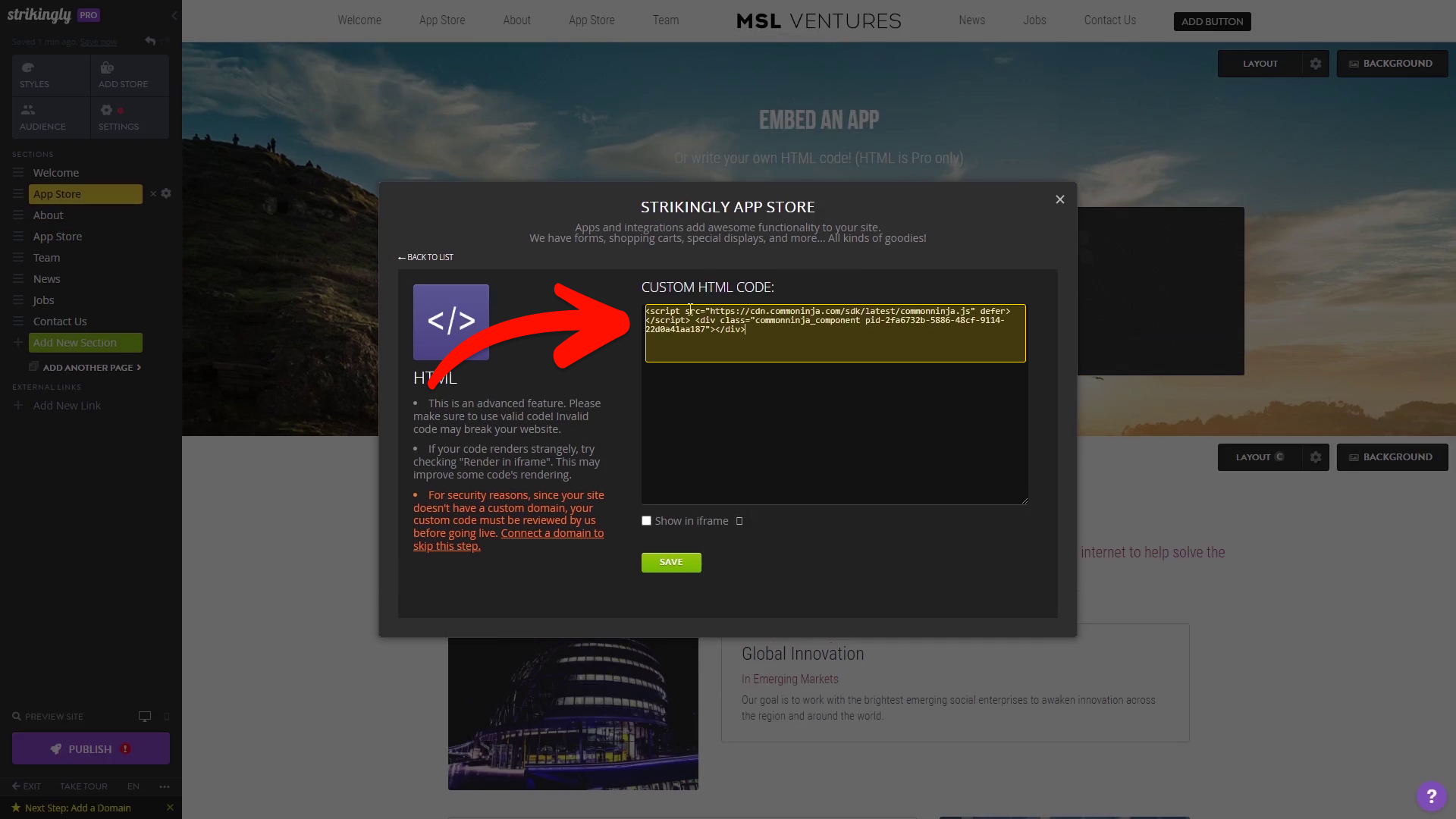
Paste the code into the Custom HTML Code window.
-
Click Save.
Check it on your live site
The widget doesn't show in the editor. Use preview mode or open your published site to see it.
You only paste the code once. When you change the widget in Embeddable later and publish it, your site shows the new version without any change on Strikingly's side.
If the widget still doesn't show, email us through the contact page with a link to the page.
Did this answer your question?
Your feedback helps us improve.